

Ever been in the situation where you need to
rename a bunch of files without giving them then same name with a number
extension? Ever needed to rename a long list of images so they're
search engine friendly? Well if the answer is yes, then your in for a
real treat. There's a quick and easy solution to renaming files using
Microsoft Excel (or any other spreadsheet software) and the windows
command prompt.
For this example, I'll be renaming a folder of images so the name replaces spaces with dashes and adds a keyword to the end, making them more SEO friendly.
Here's how to go about doing this...

Then we need to change the current directory to the one we want. An easy way of doing this is to open the folder and copy the location. Got the command prompt, type
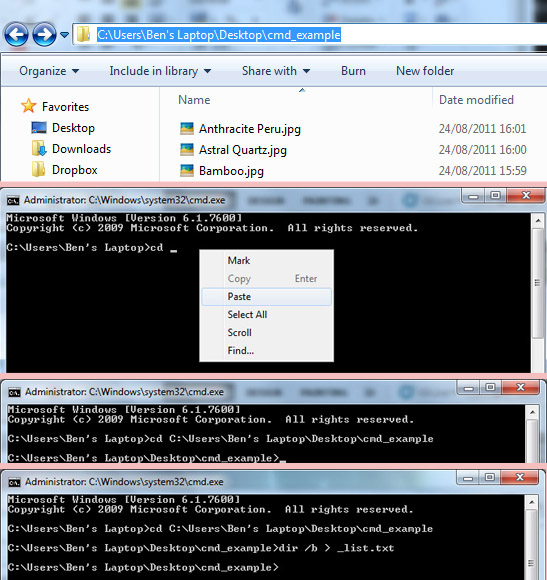
Now we need to generate the list of images. Type this:
This will create a list of all the files in the folder and export them to a new file called
Then add the following formula to the next cell across, replacing what you want to change with what I've put:
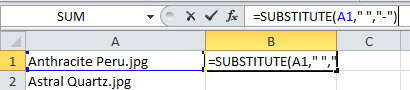
This
replaces all the spaces with dashes. We put the text source (our
original file name) then what we want to replace (in my case, the
spaces) and then what we're replacing it with (the dashes). Drag this
formula down so it renames all our files.
Now we want to add
What I'm doing here is replacing the full stop before our file extension and replacing it with
That's the file names changed, now we need to write our command so that the command prompt can do the hard work for us.
So in our spreadsheet we are going to create this.
To make sure we don't encounter any errors, we're going to wrap our old
and new file name in quotes. Whenever we want to write quotes within
excel, we need to use four of them together. This is so it knows to
print a quote symbol and not to interpret it as a string. This is what
our next column should look like:


For this example, I'll be renaming a folder of images so the name replaces spaces with dashes and adds a keyword to the end, making them more SEO friendly.
Here's how to go about doing this...

Step 1 - Generate Your File List
First thing is to get a list of all the files you want to rename. Start by opening the command prompt by clicking Start then typingcmd (in XP, hit run and then type cmd). This will open up the command prompt.Then we need to change the current directory to the one we want. An easy way of doing this is to open the folder and copy the location. Got the command prompt, type
cd and then right-click and hit paste.
Hit enter and the directory we're working within will change to the one
with all our images in. dir /b > _list.txt
_list.txt. You can call this file what you want.Step 2 - Edit In A Spreadsheet
Open our newly generated file in a text editor and copy the list to a spreadsheet. Remember to remove any unwanted files, such as the list itself.Then add the following formula to the next cell across, replacing what you want to change with what I've put:
Now we want to add
worktop to the end of each filename, so we copy the process from before: -worktop, but remembering to add the dot again.That's the file names changed, now we need to write our command so that the command prompt can do the hard work for us.
Step 3 - Writing Our Command
The syntax for renaming files with the command prompt are as so:ren [original filename] [new filename]
Step 4 - Watch The Magic Happen
Now, copy the last column and paste it into our command prompt (remember to right-click, Ctrl+V doesn't work). The window will now start working away, renaming all our files. And that's it. We've changed alot of images to be more SEO friendly and with no time at all. Once this method sticks in your head, it can be a real time saver!!source: https://benholland.me/tutorials/2011/11/11/rename-multiple-files-using-excel-in-windows.html